Local REST API
Since September 2026, Bosch/Buderus has also offered a local REST API for the Bosch CS5800/6800i and Buderus WLW176/186i heat pumps.
The local API requires a K40 RF WLAN gateway and gateway firmware 15.00.01 or higher.
Hostname or IP address
First, you need the IP address of the K40 RF Gateway on your home Wi-Fi network.
The easiest way to find the IP address is in your router’s device list.
To use the example code from the API preview on this page, enter the hostname or IP address under gatewayAddress, for example gateway.local, K40RF-1acabc or 192.168.1.42—without https://, a port or a trailing period.
Authentication
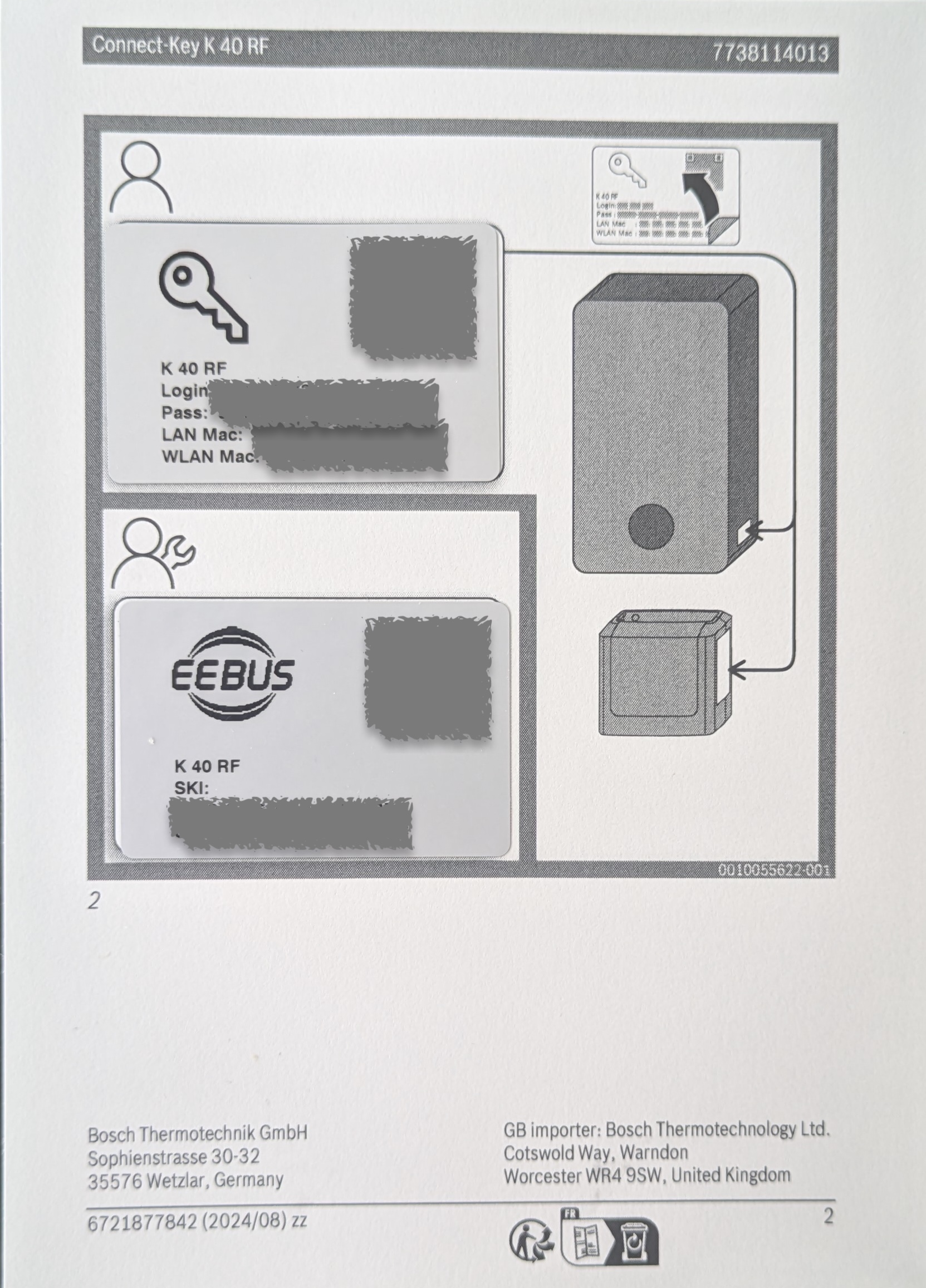
To use the local API, every request must be authenticated with an Access Token.
You need Login and Pass to issue the Access Token.
They are printed on a sticker either on the indoor unit of your heat pump, on the plugged-in WLAN gateway, on the front of the Quick Start Guide, or in the packaging of your WLAN gateway.
If you can no longer find the sticker, scan the QR code on the WLAN gateway.
It has the following format:
V:1;L:<your-login>;P:<your-pass>;MAC:<your-mac-address>;N:<model-of-gateway>
- Press the WLAN and wireless buttons on the gateway simultaneously for one second. The LEDs should briefly flash blue.
- Replace the variables
<your-heatpump-hostname>,<login-on-sticker>,<pass-on-sticker-without-dashes>and<arbitraray-name-for-your-client>in the following cURL command and then execute it within five minutes:
   curl \
     --silent --show-error --fail-with-body \
     --insecure \
     --request POST "https://<your-heatpump-hostname>:9442/auth/token" \
     --header "Content-Type: application/x-www-form-urlencoded" \
     --data-urlencode "grant_type=password" \
     --data-urlencode "username=<login-on-sticker>" \
     --data-urlencode "password=<pass-on-sticker-without-dashes>" \
     --data-urlencode "client_name=<arbitraray-name-for-your-client>"
The response contains the required value access_token.
Enter this value below under Auth → Token, without the preceding word Bearer.
The token does not expire and should be stored securely like a password.
For 412 physical_proximity_unproven, press the button combination again and repeat the request within five minutes.
For further details, see the official K 40 RF API guide.
API reference
Here you can browse the API documentation and copy cURL or code examples for the endpoints.
Open an endpoint and enter your Access Token (without Bearer) under Auth → Token, as well as the hostname or IP address of your K 40 RF gateway under Server Variables → gatewayAddress.
The examples update automatically.
Direct browser requests remain disabled because of the gateway’s CORS restriction.
The token and gateway address are stored locally in your browser.
The cURL examples contain --insecure because the gateway’s certificate does not have a trusted trust anchor.
The OpenAPI file is also available separately.